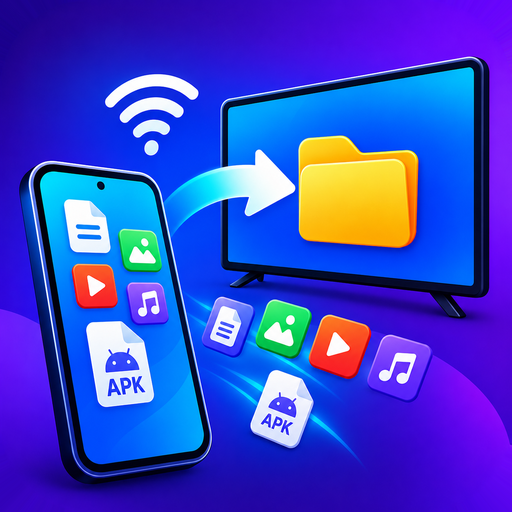
How to send files to a TV from your phone
Over your own Wi-Fi, in a few taps — no cable, no USB stick, no cloud account. Install Send Apps to TV on the phone, open the receiving side on the TV box, pick your files and send. They land in the box's Download folder and stay there.
It handles anything — photos, video, music, documents, archives — with no size limit and no re-compression, and it can install APKs on the box as well.
USB stick, cloud or Wi-Fi — which is best
| Method | Problem |
|---|---|
| USB stick | Works, but you have to get up, and many boxes have only one free port |
| Cloud drive | Upload then download the same file twice, needs an account, and a 4 GB video is painful |
| Bluetooth | Far too slow for video, and many TV boxes will not accept file transfers at all |
| Cast / mirroring | Plays the file but does not leave a copy on the box |
| Direct over Wi-Fi | Fast, no account, file stays on the device |
How to send files to your TV
- Install the app on both devices. On the phone from Google Play; on the TV box from the Play Store on the box itself, or send it across from the phone.
- Put both on the same Wi-Fi. Same network, same band. A box on Ethernet is fine as long as it is the same router.
- Open the receiving screen on the TV box. It shows the box's name and address and waits.
- On the phone, pick your files — photos and video through Android's own picker, anything else through the file picker.
- Choose the box and send. Transfers keep running while the app is in the background.
Where the files end up on the TV
In the box's Download folder, in a folder named after the app. Any file manager on the box will open them, and they stay there after the app is closed — unlike casting, which only plays them.
Sending an app rather than a file
The same transfer sends an installable app. Pick an app already on your phone, or an APK, APKS, XAPK or APKM file, and the box installs it using Android's own installer. Split APKs are handled properly — see the full sideloading guide for why that matters and what "app not installed" usually means.
If the box does not appear
- Different Wi-Fi bands — phone on 5 GHz, box on 2.4 GHz. Most common cause by far.
- AP isolation on the router hides devices from each other. Turn it off.
- Guest network — move the phone to the main SSID.
- Ethernet-only boxes work fine, provided both devices sit behind the same router.
- Still stuck? Work through the checklist.
On a TV without Android
If your television is a Samsung, LG, Hisense VIDAA or similar, it cannot install apps from a phone — but it can still play your photos, video and music over DLNA. See the guides for Hisense and TCL.
Get it free
No cable, no cloud, no account. Works with Android TV, Google TV, Fire TV and any smart TV that speaks DLNA.
Download on Google Play