
Fix problems
Fix "App Not Installed" on Android TV (and "Not Enough Space")
"App not installed" on Android TV is usually caused by low storage, an existing version of the app signed with a different key, an APK built for a different CPU or a newer Android version, or an incomplete split-APK set. Free space by clearing the data or cache of a large unused app in Settings > Apps, uninstall any older copy of the app, then send a compatible version again.
On this page
Android's installer gives very little detail when it fails. Whether you sideloaded from your phone, a USB stick or Downloader, "App not installed" on an Android TV box or smart TV can mean several different things, and "Not enough space" sometimes appears even when the storage screen shows a few hundred megabytes free. Here is how to work out which problem you have.
Our real example: VLC on a Xiaomi Mi TV
When we sent VLC from a phone to a Xiaomi Mi TV running Android TV 14, the TV reported "not enough space". The storage was filled by preinstalled apps and their caches. We opened Settings → Apps, picked one large preinstalled app we did not use, and cleared its storage and cache. The next attempt installed VLC without any other change. Storage is the most common cause on budget TVs, so start there.
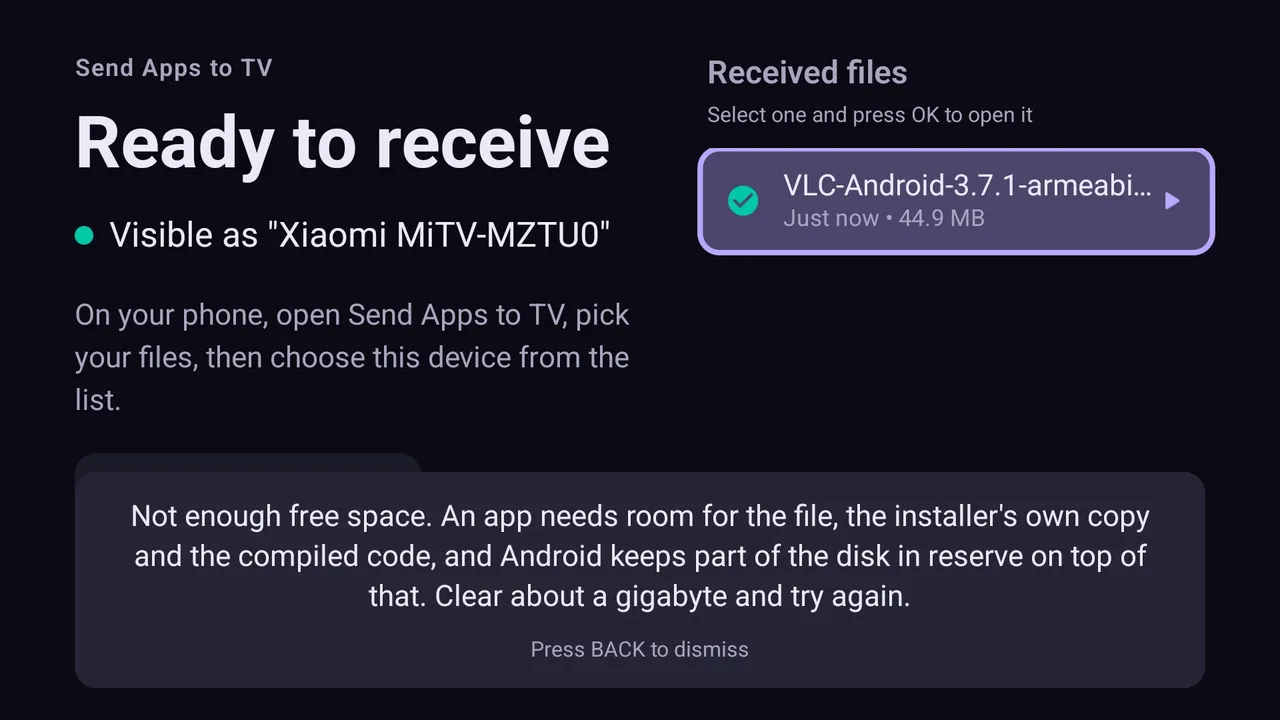
Steps: how to fix "App not installed" on Android TV
- Check free storage. Open Settings → Device Preferences → Storage (or Settings → System → Storage on Google TV). Aim for at least two to three times the app's size free.
- Find the biggest apps. Go to Settings → Apps → See all apps and look for large preinstalled or unused apps. Include system apps if your TV has a "Show system apps" option.
- Clear cache, then data, of a big app you do not use. Select the app and choose Clear cache. If that is not enough, choose Clear data (or Clear storage). Clearing data resets that app, so only do it for apps you do not rely on, or be ready to sign in again.
- Uninstall what you do not need. Remove streaming apps and games you no longer use. On many TVs, preinstalled apps can be disabled even if they cannot be uninstalled.
- Remove an old copy of the app. If the app (or a different version of it) is already on the TV, uninstall it first. A copy from a different source is signed with a different key and blocks the update.
- Check compatibility. Make sure the APK supports your TV's Android version and CPU type (often armeabi-v7a on budget TVs).
- Send the app again. From the phone, send the app or APK with SATV again, accept on the TV and press Install.
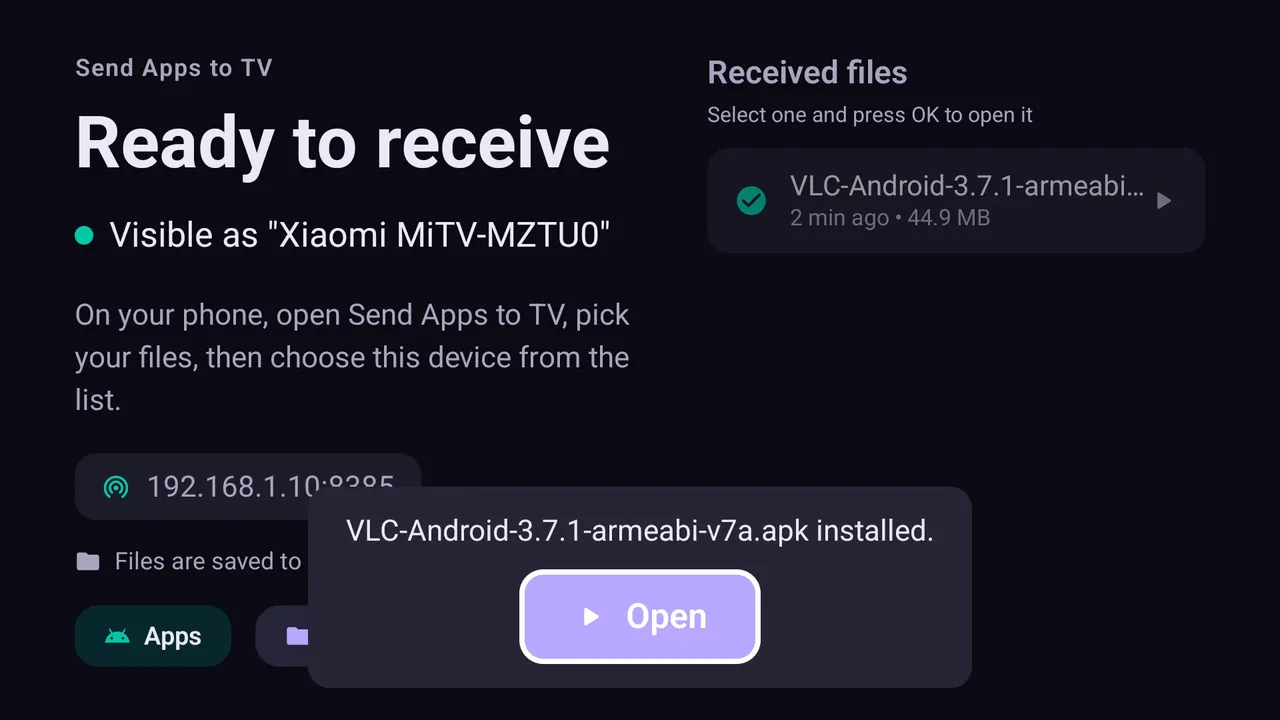
Installed. Press Open to launch the app straight away.
Why an APK is not installing on Android TV: the causes
1. Not enough storage
Installing needs room for the APK file, the unpacked app and its optimised code at the same time. A large app can briefly need well over twice its download size. Many TVs and sticks have 8 GB of storage or less, and system updates plus preinstalled apps take most of it. Clearing caches and data of large apps you do not use, as in the steps above, is the quickest fix. Moving apps to a USB drive is possible on some models but tends to be slow and fragile.
2. Signature conflict with an existing version
Every APK is signed by its developer. Android only lets you update an app with an APK signed by the same key. If the TV already has the app from Google Play and you send a version from another source, or the reverse, the install fails. Uninstall the existing copy first. You will lose that app's local data.
3. Downgrade attempt
Android blocks installing an older version over a newer one. If the TV already has a newer version, uninstall it before installing the older APK.
4. Wrong CPU architecture
Apps with native code ship builds for specific processors. Many TVs run a 32-bit system and only accept armeabi-v7a code, even with a 64-bit chip inside. An APK that contains only arm64-v8a libraries will fail on them. Look for a version labelled armeabi-v7a, or "universal".
5. Android version too old
Each app declares a minimum Android version. TVs often run older Android than phones. You can see your version under Settings → Device Preferences → About. If the app needs more, install an older release of the app that still supports your TV.
6. Incomplete or corrupt package
A split APK installed without its other parts, an interrupted download, or a renamed XAPK will give "There was a problem parsing the package" or "App not installed". Send the app as a complete bundle. SATV sends installed apps with all their splits and installs APKS, XAPK and APKM files as one set. See installing XAPK and split APKs.
7. Install blocked by unknown sources
If the message says the TV is not allowed to install unknown apps from this source, it is a permission, not a failure. Allow SATV under Settings → Device Preferences → Security & restrictions → Unknown sources (or the equivalent menu on your TV).
Exact error messages and what they mean
"App not installed as package appears to be invalid"
The installer opened the file but found it incomplete or damaged: an interrupted download, a single part of a split APK, or a file modified by a third party. Download it again from the developer, or send the complete app from your phone. Closely related: "There was a problem parsing the package".
"App not installed as package conflicts with an existing package"
A copy of the app signed with a different key is already on the TV (cause 2 above). Uninstall it in Settings → Apps → See all apps, then install again.
"This app isn't compatible with your TV"
In the TV's Play Store this means the developer did not mark the app for TV or the TV lacks a required feature. Sideloading the phone version often still installs; if the installer refuses, check the Android version and CPU type (causes 4 and 5).
"App not installed" in Downloader
Downloader hands the file to the same installer, so the same causes apply. The most frequent one with Downloader is a split APK or an incomplete download; delete the file and download it again, or use a split APK installer for bundles.
APK not installing on Firestick
Fire TV adds two causes: Install unknown apps is off for the app you use (Settings › My Fire TV › Developer options), or the device runs Vega OS, which cannot install APKs at all. See how to sideload a Fire TV Stick.
Careful with "Clear data". Clearing data on a system app you actually use (the launcher, the TV tuner, the Play Store) resets it. It is usually harmless, but it can sign you out or reset preferences. Clear cache first; clear data only on apps you are sure you do not need.
Still failing?
- Restart the TV fully (unplug it for 30 seconds). This frees temporary storage and clears a stuck installer.
- Try a different version of the app. Some newer releases drop older Android versions or 32-bit CPUs.
- Try another install method from our guide to installing APK on Android TV: phone, USB, Downloader or ADB.
- If the app installs but crashes on launch, it may simply not support TV hardware (no touchscreen, no camera, no GPS).
Questions people ask
Why does Android TV say Not enough space when storage shows free space?
Installing temporarily needs space for the APK and the unpacked app together, often two to three times the file size. Free more space by clearing cache or data of large unused apps.
Why can't I install apps on my Android TV box?
Usually storage is full, Unknown sources is off for the app you install with, or the APK is a split bundle or built for a newer Android version. Check those three first.
Is it safe to clear data of preinstalled apps?
For apps you do not use, yes. The app is reset to its first-run state. Avoid clearing data of system components you rely on, such as the launcher or TV input apps.
How do I fix App not installed as the package conflicts with an existing package?
Uninstall the existing copy of the app on the TV first. The new APK is signed with a different key or is an older version, which Android blocks.
Can a 64-bit APK run on my TV?
Only if the TV runs a 64-bit Android system. Many TVs run 32-bit Android even on 64-bit chips, so choose an armeabi-v7a or universal build.
Does SATV fix these errors automatically?
SATV sends the complete app, including split APKs, and opens the standard installer. Storage, signature and compatibility issues are decided by the TV's Android system and need the fixes in this guide.