
Install apps on TV
How to Install APK on Android TV (From Your Phone, USB or ADB)
The easiest way to install an APK on Android TV is from your phone, with no USB stick and no PC: install SATV on your Android phone and on the TV, connect both to the same Wi-Fi, and send the app or APK file. The TV asks you to accept, then opens the normal Android installer, where you press Install (allowing "Install unknown apps" for SATV the first time). You can also sideload an APK from a USB stick with a file manager, download it on the TV with Downloader, or push it from a computer with ADB.
On this page
Most Android TV boxes and smart TVs only show apps that the developer has flagged for TV in Google Play. A lot of useful apps never get that flag, and some are not in the TV store at all. Sideloading means installing the APK file yourself. This guide covers the four real ways to sideload apps on Android TV, starting with the one that needs nothing but your phone, and ends with the exact error messages you may meet and what each one means.
What you need
- An Android phone with the app you want, either installed or as an APK / APKS / XAPK / APKM file.
- An Android TV or Google TV device: a smart TV (Sony, TCL, Xiaomi, Philips, Hisense and others running Android TV), an Android TV box or stick such as a Mi Box or Mi TV Stick, a Chromecast with Google TV, an NVIDIA Shield or similar.
- Both on the same home Wi-Fi.
- Enough free space on the TV. Budget TVs often ship with very little, so check Settings → Device Preferences → Storage first.
Method 1: Install APK on Android TV from your phone (no USB, no PC)
This is the method we use and test. It also answers the common question of how to send an APK file from a phone to Android TV: the phone does the sending, the TV does the installing.
- Install SATV on the phone. Open Google Play on your Android phone, search for SATV: Send APK & Files to TV and install it.
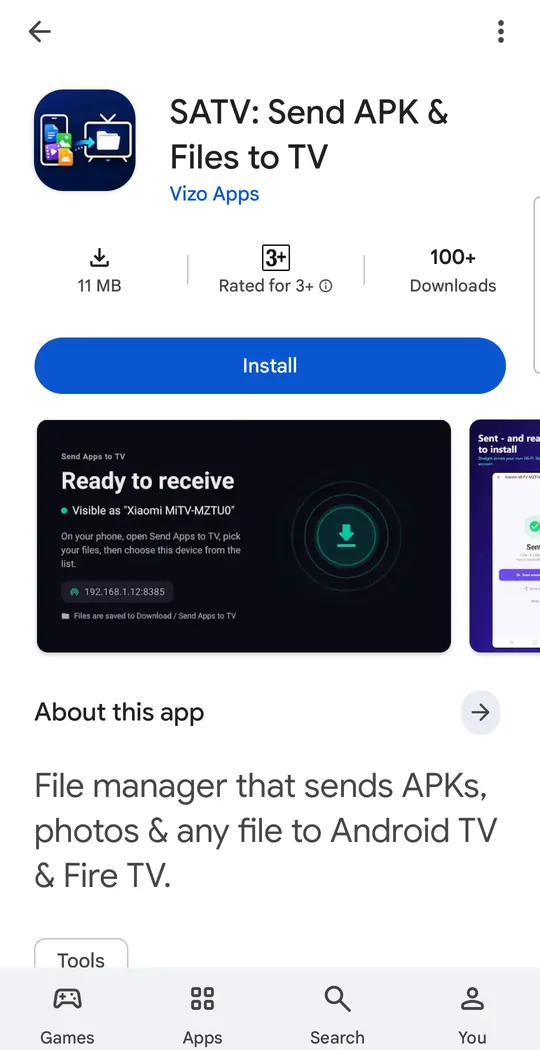
SATV in Google Play on the phone. - Install SATV on the TV. On the TV, open the Google Play Store, search for SATV and install the same app. It runs as the receiving half on the TV.
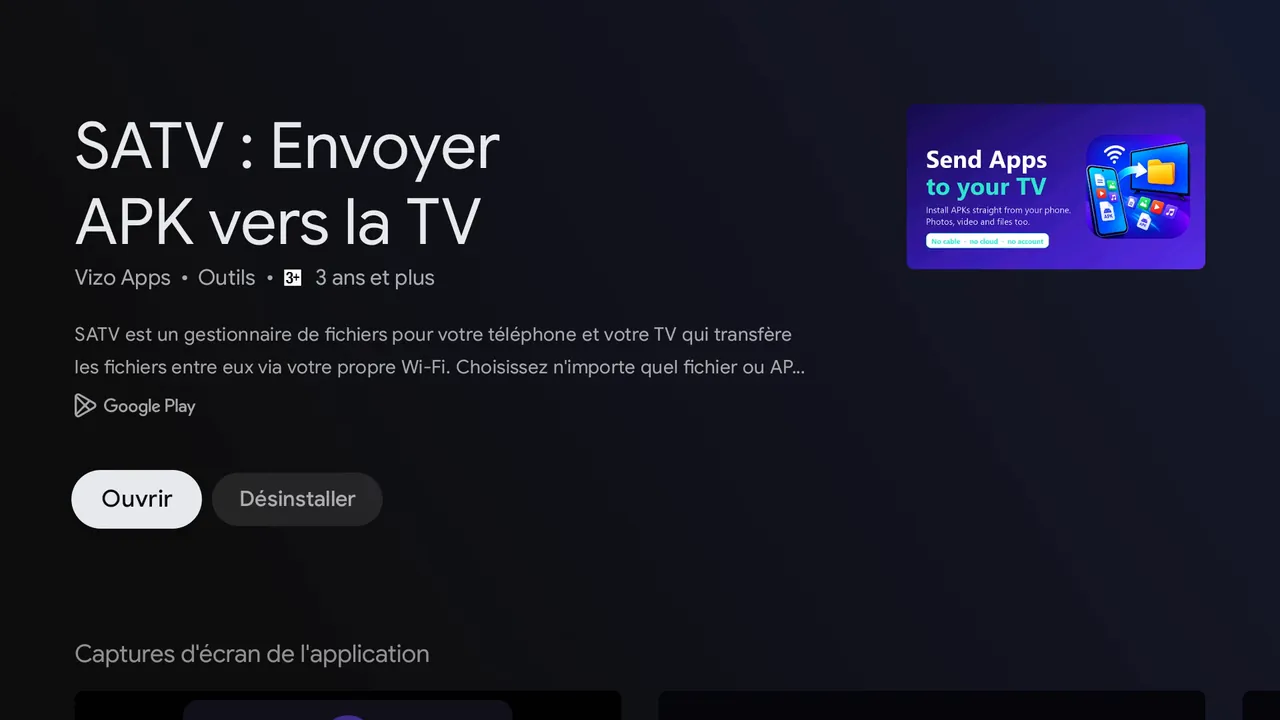
The same app in the TV's Google Play Store (after installing). Xiaomi Mi TV, French interface. - Put both devices on the same Wi-Fi. Phone and TV must be on the same local network. A guest network or a separate 5 GHz/2.4 GHz "isolated" network can block devices from seeing each other.
- Open SATV on the TV. Launch SATV on the TV so it is ready to receive from the phone.
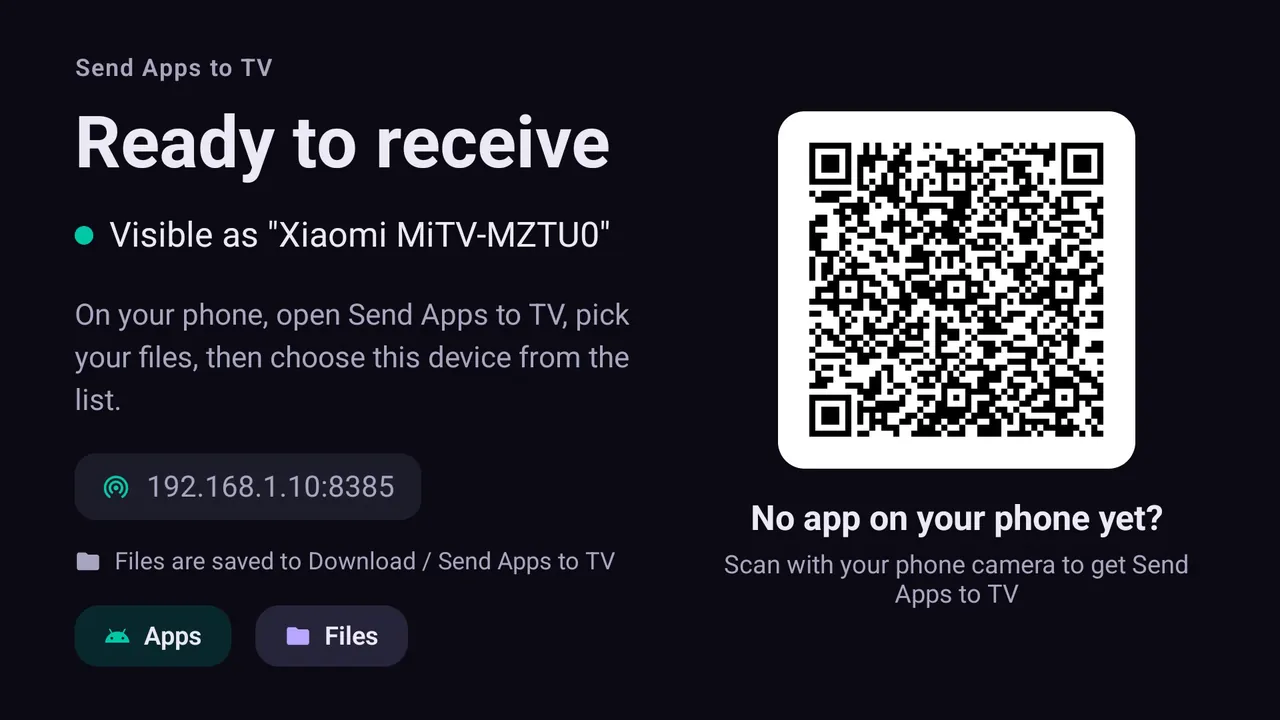
SATV open on the TV and ready to receive. The QR code is for phones that do not have the app yet. - Choose what to send on the phone. Pick an app that is already installed on your phone, or browse to an APK, APKS, XAPK or APKM file you downloaded.
- Pick your TV. Select the TV from the list of devices SATV finds on your network and send.
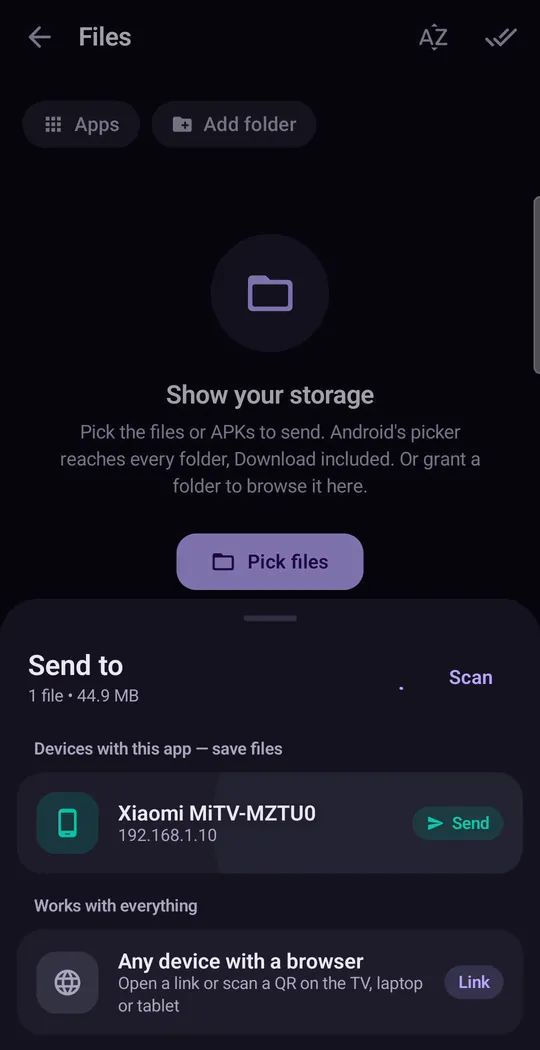
Choosing the TV on the phone. TVs running SATV appear under Send to. - Accept on the TV. A prompt appears on the TV asking whether to accept the incoming app. Select accept with the remote.
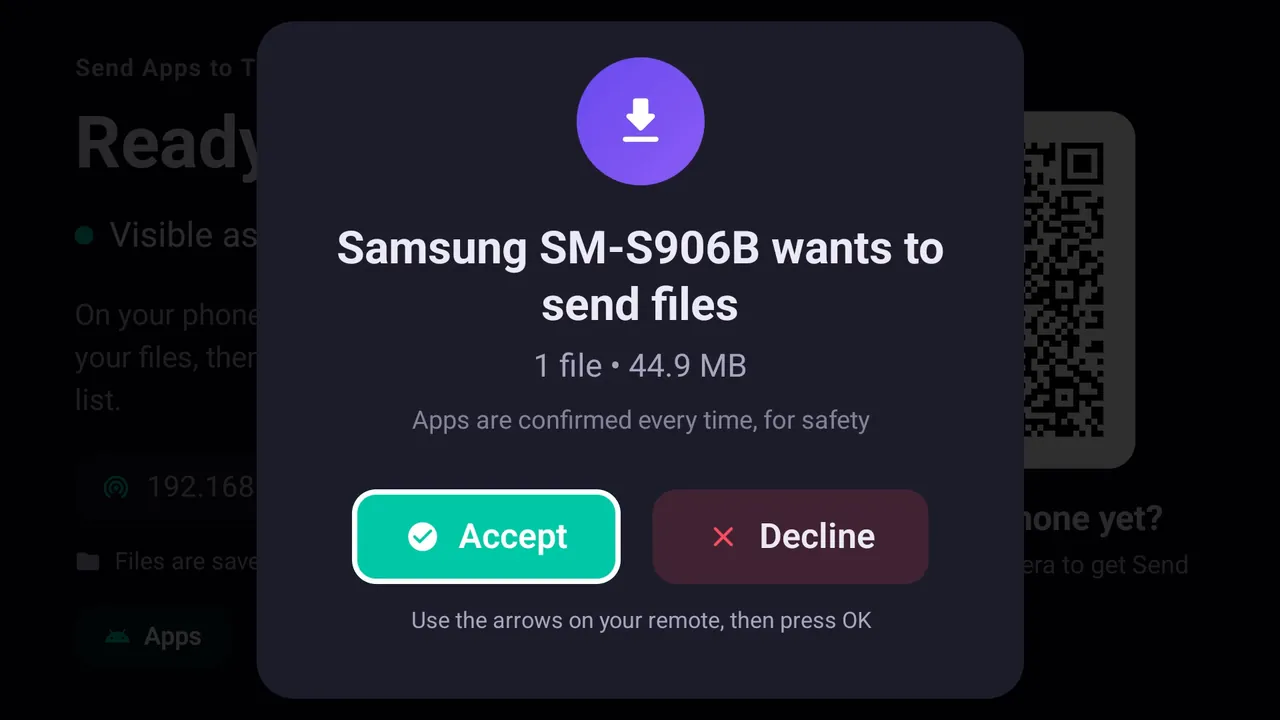
The TV asks before anything is received. Select Accept with the remote. - Allow unknown apps if asked. The first time, Android may say that for security your TV is not allowed to install unknown apps from this source. Open Settings from that message and switch on SATV, then go back.
- Press Install. The standard Android installer screen opens. Press Install, wait a few seconds, then press Open or Done.
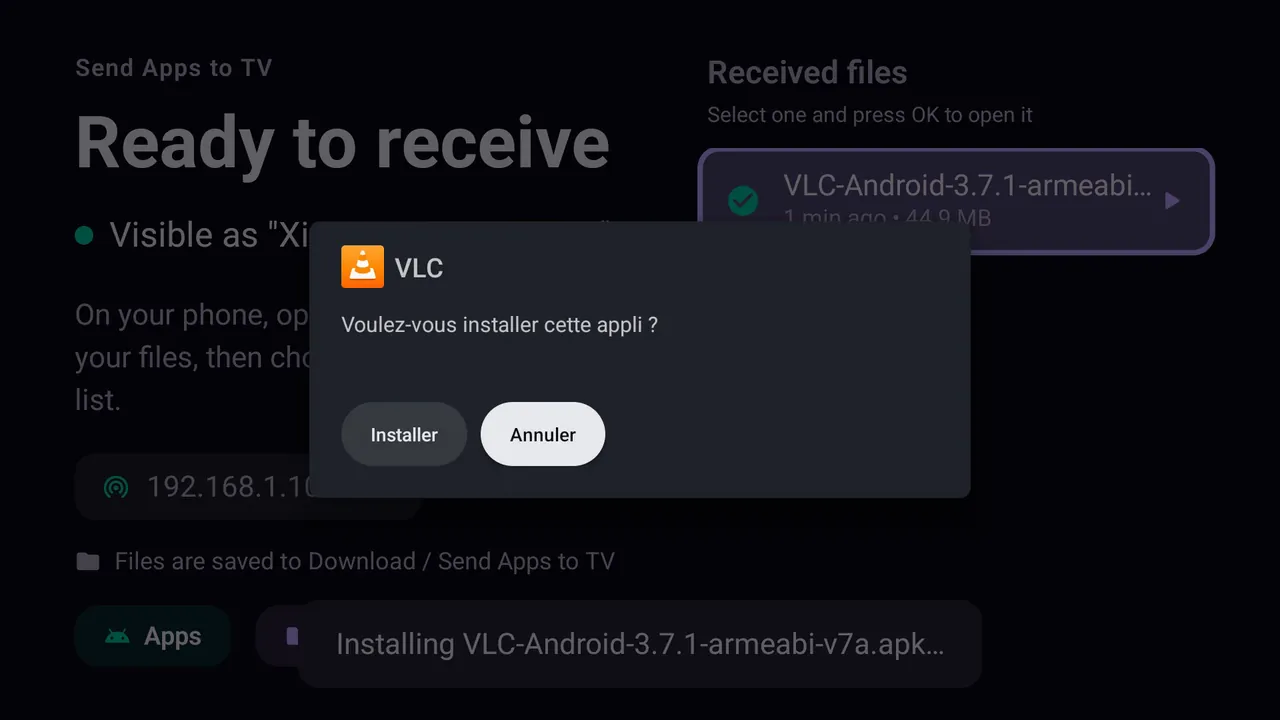
Android's own installer on the TV. Installer means Install. Xiaomi Mi TV, French interface.
Because the phone does the work of finding and packaging the file, you never have to type a long download link with a TV remote, and split APKs (APKS, XAPK, APKM) install as one app. Our XAPK and split APK installer guide explains why that matters.
How to enable unknown sources on Android TV (12, 14 and Google TV)
Android 8 and later handle unknown sources per app: you are not switching on a global "allow everything" setting, you are trusting one specific app (SATV, a file manager, Downloader) to hand APKs to the installer. If "unknown sources" looks disabled or the app you need is missing from the list, open that app once and start an install; Android then offers a shortcut straight to the right switch. The menu path depends on the manufacturer and version:
- Settings → Device Preferences → Security & restrictions → Unknown sources (most Android TV models, including Android TV 12 and 14)
- Settings → Apps → Security & restrictions → Unknown sources (Google TV)
- Settings → Apps → Special app access → Install unknown apps (some newer builds)
Find the app in the list and turn it on. You only need to do this once per app. Device-specific paths are in our guides for Google TV and Chromecast, Xiaomi Mi TV and Mi Box and TCL TVs.
Method 2: Install APK on Android TV from USB
If your TV or box has a USB port, you can install an APK on Android TV via USB without any network at all:
- Copy the
.apkfile onto a USB stick from a computer or phone. FAT32 or exFAT formatting is read by almost every TV. - Plug the stick into the TV. Some TVs show a pop-up with a built-in file browser; otherwise install a file manager such as X-plore File Manager from the TV's Play Store.
- Open the APK in the file manager, allow that file manager under Unknown sources when Android asks, then press Install.
The catch: a plain file manager installs single APK files only, so APKS and XAPK bundles fail, and you can't install from USB without a file manager. The full walkthrough, with formatting tips and fixes, is in how to install APK on Android TV from USB.
Method 3: Download the APK on the TV (Downloader or a browser)
The Downloader app (by AFTVnews, free in Google Play on many Android TV devices) lets you type a web address or a short numeric code with the remote, downloads the file and opens the installer. A TV browser such as TV Bro does the same job. Allow Downloader or the browser as an unknown source the first time.
This works well when the developer publishes a direct APK link, for example VLC on videolan.org. It is slow when the link is long, it only handles single APKs, and it is no help for an app that only exists on your phone. Only use links from the developer's own site.
Method 4: Install APK on Android TV using ADB
ADB (Android Debug Bridge) installs apps from a computer over the network. It is the tool developers use, and besides SATV it is the main way to install split APKs on a TV.
- Enable Developer options. Go to Settings → Device Preferences → About (Google TV: Settings → System → About) and click Build (Android TV OS build) seven times.
- Turn on debugging. In Developer options, turn on USB debugging (called Network debugging on some boxes). On newer versions you may instead use Wireless debugging, which asks you to pair first with
adb pair <tv-ip>:<port>and the code shown on the TV. - Find the TV's IP address under Settings → Network & Internet → your Wi-Fi network.
- Connect from the computer. With Google's platform-tools installed, run
adb connect <tv-ip>and accept the "Allow debugging?" prompt on the TV. - Install. Run
adb install app.apk. For a split APK, unpack the bundle and install every part together:adb install-multiple base.apk split_config.arm64_v8a.apk split_config.en.apk.
ADB is powerful, but for one app it is a lot of setup. Turn debugging off again when you are done.
Which method should you use?
| Method | Needs | Handles split APKs? | Best for |
|---|---|---|---|
| SATV from your phone | Android phone, SATV on phone and TV, same Wi-Fi | Yes (APKS, XAPK, APKM) | Apps already on your phone, no PC, no USB |
| USB stick + file manager | USB port, stick, file manager on the TV | No, single APK only | Offline installs, TVs without good Wi-Fi |
| Downloader or browser | A direct APK link typed with the remote | No, single APK only | Apps with a short public download link |
| ADB from a computer | PC with platform-tools, Developer options, debugging on | Yes, with install-multiple | Developers, testing, scripted installs |
Which TVs can install APK files?
| TV system | Sideload APK? | How |
|---|---|---|
| Android TV, Google TV (Sony, TCL, Xiaomi, Philips, Chromecast, Shield, TV boxes) | Yes | This guide |
| Fire TV with Fire OS | Yes | How to sideload a Fire TV Stick |
| Fire TV with Vega OS (Fire TV Stick 4K Select, new Fire TV Stick HD) | No | Amazon Appstore apps only |
| Samsung (Tizen), LG (webOS), Roku, Hisense VIDAA | No | Not Android: what works instead |
A real example: VLC on a Xiaomi Mi TV
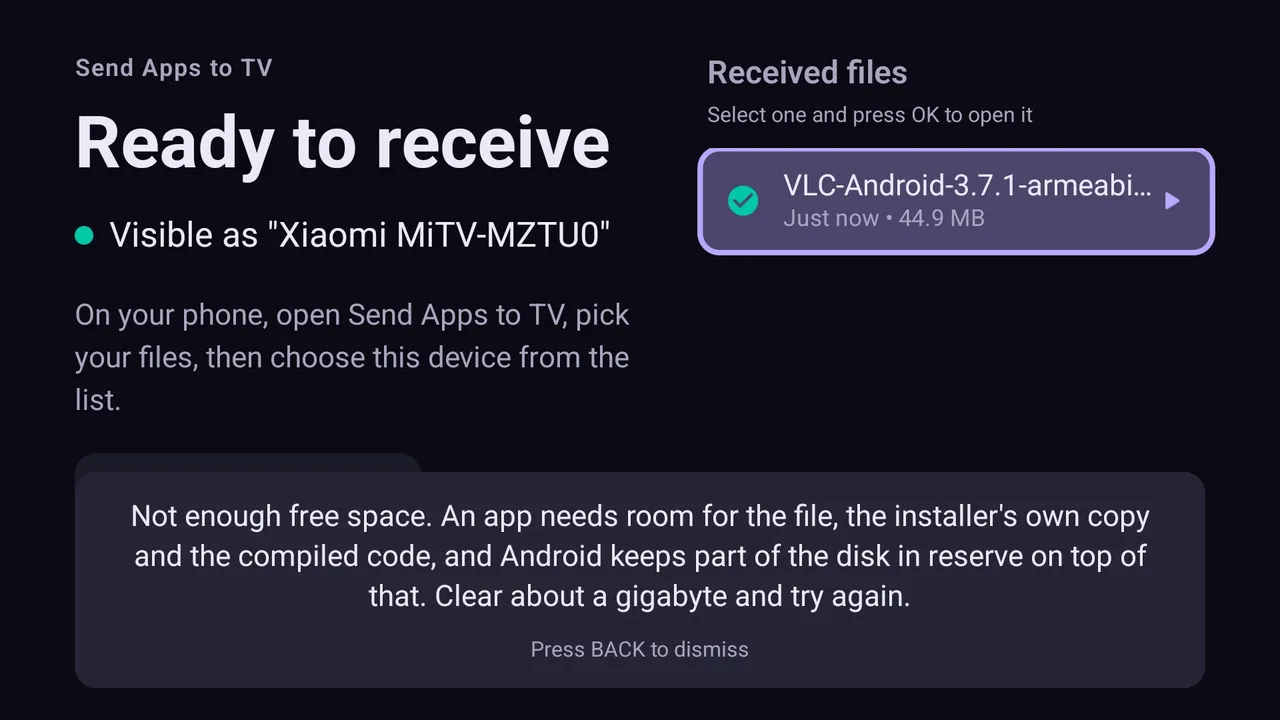
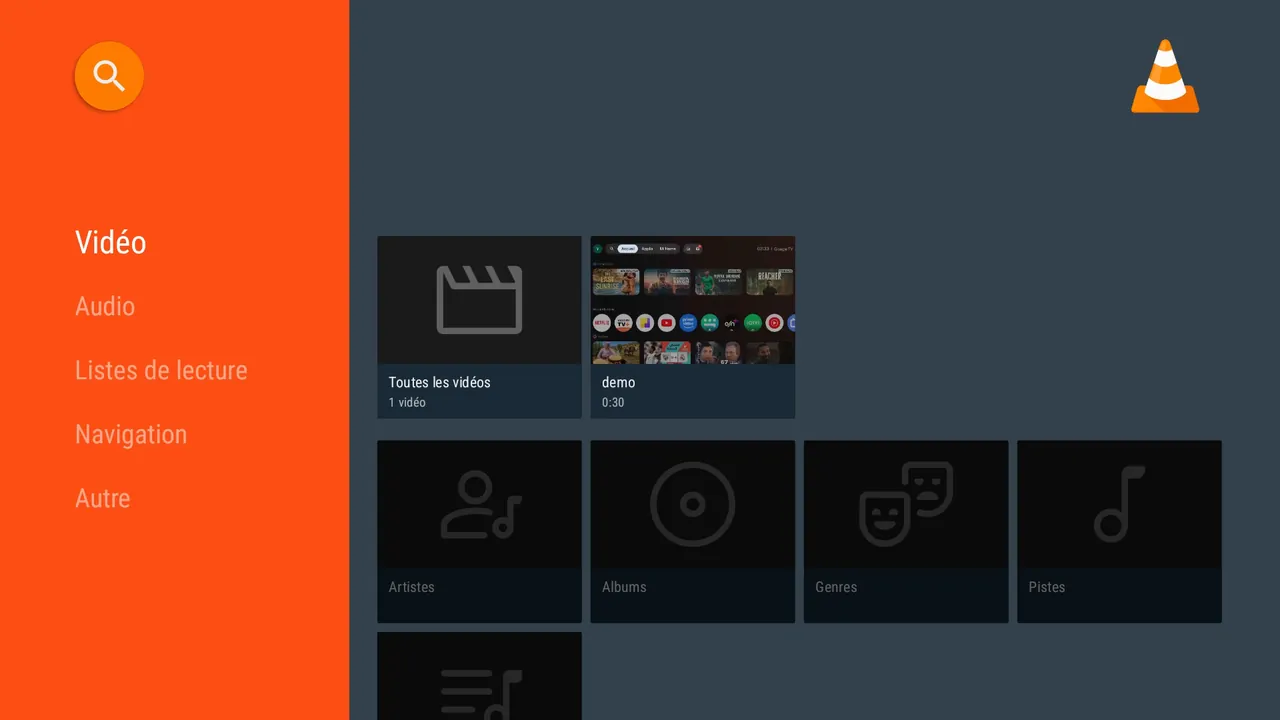
We tested Method 1 by sending VLC from a phone to a Xiaomi Mi TV running Android TV 14. The first attempt stopped with a "not enough space" message from the TV. The TV's internal storage was almost full of preinstalled apps and their caches. We opened Settings → Apps, picked one large preinstalled app we did not use, and cleared its storage and cache. After that, the same transfer installed VLC on the first try. If you meet the same error, see how to fix "App not installed" and "Not enough space".
Common errors when you sideload an APK
These are the messages Android TV shows, whichever method you use.
"There was a problem parsing the package"
The installer could not read the file. Usually the download was incomplete, you sent one part of a split APK as if it were a full app, or the app needs a newer Android version than the TV runs. See how to fix "There was a problem parsing the package" on Android TV.
"App not installed"
The file was read but the install failed. The usual causes are low storage, an older copy signed with a different key, or a build for the wrong CPU type. Our App not installed fix guide goes through each one.
"For your security, your TV is not allowed to install unknown apps from this source"
This is a permission, not a failure. Choose Settings in the message, switch on the app you are installing with, and go back. The paths are listed in the unknown sources section above.
"This app isn't compatible with your TV/device"
In the TV's Play Store this means the developer has not marked the app for TV, or your hardware lacks something the app requires. Sideloading the phone version often still works; if the installer itself refuses, the APK needs a newer Android version or a different CPU type. More in the install fix guide.
Play Protect warning ("Blocked by Play Protect")
Google Play Protect scans sideloaded apps. For an app from its official developer that Play Protect simply does not recognise, you can open the details and choose to install anyway. If it says the app is harmful, do not install it. If the install then fails, see the fix guide.
After installing: where is the app?
Apps that were built for phones often do not appear on the Android TV home screen, because the launcher only lists apps that declare a TV banner. The app is installed; you just open it a different way: Settings → Apps → See all apps, select the app, then Open. Our guide on sideloaded apps not showing on Android TV covers launchers and shortcuts.
Is it safe to sideload apps on Android TV?
Sideloading is as safe as the APK you choose. Sending an app that is already installed on your phone from Google Play is about as clean as it gets, because you are copying a package Google Play already delivered to you. Be careful with APKs from random websites. SATV transfers files directly between your phone and TV on the local network, and nothing is installed until you accept on the TV and press Install. Looking for something worth installing? See our legal apps worth sideloading.
Questions people ask
How do I install an APK on Android TV without USB?
Send it over Wi-Fi from your phone with SATV installed on both devices. The TV receives the file and opens the Android installer. Downloader and ADB also work without USB.
Do I need a PC to install an APK on Android TV?
No. ADB needs a computer, but sending from the phone needs no computer, no developer options and no cables.
How do I send an APK file from my phone to Android TV?
Open SATV on the TV and on the phone, pick the installed app or the APK file on the phone, choose the TV and accept on the TV. It installs through Android's normal installer.
How do I install an APK on an Android TV box or stick?
The same way as on a smart TV: Mi Box, Mi TV Stick, Chromecast with Google TV and other boxes run Android TV or Google TV, so every method on this page works.
Can I install an APK on Android TV without Google Play Store?
Yes. The app you install never needs to be in the TV's store. SATV's TV half comes from Google Play on Android TV; on a device without Play, use USB, Downloader or ADB.
Why does my TV say it cannot install unknown apps?
Android blocks installs from apps you have not trusted yet. Allow "Install unknown apps" (Unknown sources) for that app in the TV's security settings, then try again.
Can I send split APKs, XAPK or APKS files?
Yes. SATV handles APK, APKS, XAPK and APKM files, including split APKs, and installs the parts together. See our XAPK guide.
Will every phone app work on my TV?
Not always. Some apps need a touchscreen, phone sensors or a CPU type the TV does not have. Media players, file managers and browsers usually work well with a remote.
Is SATV free?
Yes. SATV is free on Google Play. Ads are shown on the phone side only, never on the TV.